Tuesday, December 18, 2012

Amazing Photoshop Light Effect In 10 Steps


Step 1
Create a new document, apply a Layer Style on the background layer. Add a Gradient Overlay and a Pattern Overlay.


Step 2
Here I've used an icon I found on a cool site, but you can use whatever you want.


Step 3
Select the Ellipse Tool (U) and create a shape like I did. After that apply a Gaussian Blur (Filter>Blur>Gaussian Blur) with radius of 30px.


Step 4
Create a new Folder name it “Light Effects”. Change its blend mode to Color Dodge, and move the ellipse you created to this folder.


Step 5
In order to create the sparks we will use the amazing brush engine. Add a new layer, inside the “Light Effects” layer, set white for the color and follow the images below.


Step 6
Using the Layer Styles add a Outer Glow to the sparks


Step 7
Lets add some smoke. Create a new Layer, call it “Smoke”. Change its blend mode to Color Dodge and select the Lasso Tool. Set 40px for Feather and create a selection like I did below. After that make sure that the foreground is white and the background is black and apply a Filter>Render>Clouds. Tip: Continue applying the filter until you get the best clouds.


Step 8
Add some text and using the Layer Styles again lets create a nice effect.


Step 9
Place your logo and you can even add more effects like I did on the Magic Lighting Effect, but then you will have to follow that tutorial ;).


Conclusion
I have to say, if you know a bit of Layer Styles and the Brush engine in Photoshop you will be able to create amazing effects. It will depend exclusively on your imagination and playing with the tool. Sometimes just changing a some settings and you get a totally different effect.


Shaan Graphics is a premier Image Editing service provider, providing this exclusive glamour retouching service with Internationally lowest price guaranteed. Shaan Graphics Image editing service starts from $0.50 only.

Visit www.shaangraphics.com for more details


Monday, December 17, 2012

Realistic Portrait Retouching With Photoshop

Final Product What You'll Be Creating


Today’s designers and photographers need to have a varied skill set that sets them apart from the pack. One common skill that both can use is portrait photography retouching. This tutorial will make you a more effective retoucher and help keep your portraits looking clean and realistic. Subtlety is – going too far will only make the results noticeable. The best comment you can get after presenting a final image is "I didn’t even notice you did that". Let’s get started!

Step 1
Step 1 does not involve using a tool at all. Before you start retouching an image, you should open and evaluate the image and come up with a mental roadmap of what need be done. I’ve illustrated the steps necessary to retouch this portrait below.
The areas to retouch are: 
1. Age spots, skin blemishes and other skin issues;
2. Forehead wrinkles; 
3. Laugh lines and deep wrinkles; 
4. Bags under eyes and crows feet; 
5. Thinning eyebrows; 
6. Stained teeth


Step 2
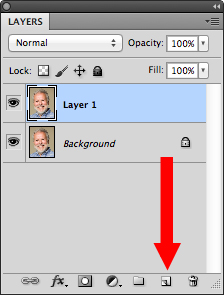
First, we need to work non-destructively. Duplicate the layer in the Layers Panel, by either dragging the background layer to the New Layer icon at the bottom of the Layer Panel, or by using the keyboard shortcut Command/Ctrl + J to duplicate the Layer Via Copy. This will give us "Layer 1". Double click the layer name and rename "Retouched". This will be the layer we will do all our retouching on, leaving the Background untouched.


Step 3
The first tool we will be using is the Spot Healing Tool shown in the Tool Bar below or with the tool shortcut "J".


The Spot Tool utilizes local texture and tone to blend over flawed areas in your image. There are several settings in the Options Bar at the top of your window. There are only two that we are going to need to focus on however. The first is the Brush Picker (1) and the Type (2).

First, Access the Brush Picker via the drop down arrow on the right side of the button. The only control we need to adjust in this window is the Hardness, which we will set it to 50%. 50% will blend the tool with the existing image better than 100%, which looks like a paper punch, but will not soften the brush too much. 0% will blend too much and diminish the effectiveness of the tool. Hit enter/return to exit the window – do not click off to the side to close the panel or you may accidentally affect your image. Next, make sure you are on "Proximity Match" for this portion of the tutorial. 

We are now ready to start retouching the image. The Spot Tool is a brush-based tool and only needs to be slightly larger that the small flaws we are repairing. To adjust the brush size, use your bracket keys to change the size. Left bracket [ makes the brush smaller and right bracket ] makes it larger. (You can also adjust the hardness by adding the Shift key, but we want to keep this at 50%). Center your brush over your flaw, click and release. It should cover the flaw and blend in flawlessly. If it does not, make sure that your brush is properly sized and that you are not overlapping another texture, like hair or darker skin tones, etc.

Repeat this step until all skin small blemishes are removed. If you have larger areas (the vein on the cheek) leave those for now, and concentrate on smaller spots, freckles, moles, etc. Remember to adjust the brush using the bracket keys as you go. Keep it small – if you increase your brush size tool large, the tool will fail by mixing too much information and you will end up with a mess. No worries, there are tools designed for larger areas.


Step 4
After repairing the small spots, it’s time to move up to the larger flaws – forehead wrinkles, larger skin defects and laugh lines. To repair these areas, we will be using the Healing Brush Tool, which can be found under the Spot Healing Tool. Click and hold on the tool in the toolbar to access the additional healing tools. The Healing Brush tool repairs similar to the Spot Tool, but it splits the workload in two. Texture is now designated by the user (you) and tone is blended locally after you use the tool.

Once you select the tool, again access the Brush Picker in the Options Bar and make sure the Hardness is set to 50%. Make sure the "Align" option is checked to the right of the Options Bar. You can use the bracket key shortcut to change the size as needed.


We will start with the forehead wrinkles. Move your brush to a clean area of skin texture – usually you can find this between the wrinkles. We want to make sure that we have enough room to move and not run into other textures, like his hair or other wrinkles.

Hold down your Opt (Mac)/Alt (PC) key and click once to designate the texture source. Then take your tool and align the brush over the beginning of the wrinkle. Change your brush size to a size slightly wider the wrinkle. Click and hold, then brush across the flaw. Notice that your source icon is following your every move, offset based on your source. Try to paint in one mouse-click if possible, but if you notice that your source is getting close to another texture, you can release. When you release, the tool blends the tone locally making the new texture blend in with the existing surroundings. The "Align" feature will keep your source offset exactly where you designated it, until you choose another source. With each flaw, you should Opt/Alt-Click another source area and then paint over the flaw.


For the laugh lines, align the source slightly above the flaw and offset enough that you can paint over the entire wrinkle in one motion. Cover the initial wrinkle first, then blend the tone with additional strokes. Always be aware of your surroundings. If you get too large of a brush, you could accidentally blend in the lighter color of the mustache or other areas. Adjust your size as needed.


Step 5
The eyes present the biggest challenge on any portrait. Flaws are usually are so close to the eye and other areas (eyelashes, eyebrows, etc.) that using the Healing Brush is almost impossible given the size constraints. This is where the Patch Tool comes in. The third healing tool of the group, the Patch Tool is not brush based at all- it is selection based. Choose the Patch Tool under the Healing Brush Tool in the Tool Bar.

The only setting we have to check on this tool is that it is set to "Source" in the Options Bar.


Start by using the Patch tool to make a selection around the bag under the right eye. I like to dissect the eye wrinkles into sections. This gives me a more effective result than trying to select around the entire eye at one time.


Next click and drag the selection to a clean area of skin texture, like the forehead, and release. The new texture blends with the local tone and the wrinkle is gone. Repeat around the eye, selecting sections (left, right, top, bottom) individually and dragging the selection to a clean texture source.


Step 6
After you have the eyes completed, this is what the finished "Retouched" layer should look like:


But as you can see, this looks completely unrealistic. The trick is to use a Layer Mask to blend the original image back into the retouched layer.
Start by clicking the Layer Mask button at the bottom of the Layers Panel. This will give you a Layer Mask on the Retouched Layer.


Then, using the Eraser tool we will blend back in some of the flaws from the original image. Set your background color to Black (or hit "D" for default colors) and change your Eraser opacity to 33%. Make sure you are using a soft-edged brush (at least 50% Hardness).


Start by erasing over the laugh lines in one stroke. Choose a brush size that will encompass the flawed area. This will slowly bring back the flaw. I like to go over the entire wrinkle once, then on the second pass starting at the nose, I go halfway down the wrinkle giving it 66% coverage. Lastly I go right next to the nose on another pass making it 99%. This technique fades the wrinkle away as it moves further away from the nose. Repeat on the other side.


For the eyes, I use the same technique, but start at the corner of the eye closest to the nose and blend away from the nose. Remember to build slowly back into the area, we do not want to bring the entire flaw back at 100%. For the crows feet, I only went with one pass since they were so defined.


This is how the blended face looks after masking:


Step 7
After blending the face, I noticed that his eyebrows were pretty thin and I wanted to add some more definition back into that area. We can do this using a new process in Photoshop CS5 – Puppet Warp. First, make a selection around his beard using the lasso tool like so:


Next click on the Retouched layer icon in the Layers panel (deselecting the mask) and duplicate the selection onto a new layer using Command/Ctrl + J. Name the layer "Eyebrow". Move the image up to the eyebrow area and rotate to the approximate angle using Edit > Transform.


Next, go to Edit > Puppet Warp. This will create a mesh over your eyebrow. Click on the two ends of the eyebrow, dropping pins on the mesh. Click and drop a third pin in the middle of the eyebrow.


Click and drag the pins to warp the eyebrow to match the contour of the existing shape. And hit Enter/Return to accept the warp.


Finally, drop the opacity on the Eyebrow layer and using a soft eraser, blend the edges of the new eyebrow to the portrait. Repeat the steps for the other eyebrow.


Step 8
To whiten the teeth, simply make a rough selection using the lasso tool. Next, go to the Adjustments Panel and create a new Hue/Saturation Adjustment Layer.


Adjust the Saturation setting to the negative side, desaturating the yellow teeth. Do not go too far, you still want some color. Adjust brightness if needed. Do not adjust the Hue.


Final Image
Here is the final image. Wrinkles are nice and blended, new eyebrows for our friend and a whiter smile.


 Shaan Graphics is a premier Image Editing service provider, providing this exclusive glamour retouching service with Internationally lowest price guaranteed. Shaan Graphics Image editing service starts from $0.50 only.

Visit www.shaangraphics.com for more details

Saturday, December 15, 2012

Seriously Cool Photoshop Explosion Effect

Final Product What You'll Be Creating


Explosions are cool. Seriously cool. So when I received some e-mails asking about how to create a break-apart, explosion effect, I knew it’d be worth making a tutorial on. Read on to find out how to break apart a body, then add some awesome lighting and glow, and nopattern style, to finish the image off.


Step 1
Create a new document, any size. I used 800x600px. Fill the background layer with black. After that, place your photo in the center of the document.

Step 2
Select the Polygonal Lasso Tool (L) and select the girl. When you complete the selection process, go to Select > Refine Edge. A dialog box will open with some settings. Select to preview the image on black, and make some adjustments until you find a nice result. Add a bit of feather, radius, and expand the selection. Then 
press OK.


Step 3
Invert the selection, Select > Inverse and delete the background of the photo. After that, go to Filter > Sharpen > Sharpen and the Filter > Noise > Add Noise. Set 2% for the noise amount.

Step 4 - Breaking Apart
With the Lasso Tool (L), select the girl’s leg like I did, then go to Layer > Layer Mask > Reveal All. After that, select the Paint Bucket Tool (G) and fill the selection with black. Make sure that you paint the selection.


Step 5
Here we will need some brushes. You can find good brushes at brusheezy.com. I used a set of brushes called Blood-grunge.
Select the Brush Tool (B) and white for the color. Pick one of the brushes. I used the first one of the set and reduce its size to 300 or less. After that, start painting the hidden leg. You will need just a few clicks with the brush tool to get a good result.


Step 6
The previous step broke apart the leg, but the shatters didn’t spread like a real explosion. So in order to do that, we will use the Clone Stamp Tool (S).

Create a new layer above the girl’s layer and select the Clone Stamp Tool. Choose Current & Below in the Sample settings. If you have never used the Clone Tool before, 
the first thing to do is define a source point. To do that hold the Alt key and select the source point. After that, start cloning some parts of the exploded leg to spread the shatters. The last thing here is go to Filter > Sharpen > Sharpen.


Step 7
Repeat the Steps 4, 5, and 6, but select the arm this time to break apart.


Step 8 — Clouds
Add a new layer on top of the others. Select white for the foreground color and black for the background. Then go to Filters > Render > Clouds. Now select the Lasso Tool. Set the feather to 20px, and select an area around the girl. You will have a selection like the image below. After that, just go to Layer > Layer Mask > Reveal Selection.


Step 9
Double-click on the clouds layer to open the Layer Styles dialog box. The first thing to do here is use Screen for the Blend Mode and use 28% for the Fill Opacity. 
Then select Gradient Overlay. The Blend Mode will be Color Dodge this time with 55% Opacity. Use the same colors as the image below.


 Step 10 — Lighting Effects
I used some brushes to create the light effects. 
Create a new folder above all the other layers, rename it to “lights” and change the Blend Mode to Color Dodge. Then select white for the color and the Brush Tool. Test some brushes to see the result. Create a layer for each effect.

Step 11
Create a new layer inside the “lights” folder. Select the Rectangular Marquee Tool (M), making sure the Feather is 0px. Create a rectangular selection. Then select the Gradient Tool (G). For the colors, use white for both start and end, but change the end’s opacity to 0. Then just fill the rectangle with the gradient like in the image below.


Step 12
Select the Elliptical Marquee Tool (L) and use 10px for the Feather. Create an elliptical selection like the image below. The just go to Layer > Layer Mask > Reveal Selection.


Step 13
Duplicate the layer and go to Edit > Transform > Flip Vertical. Then go to Edit > Transform > Scale and reduce the height only. After that, just group these two layers. You can create more lights just by duplicating the group, rotating, and scaling it.


Step 14 — Illustrator
In Illustrator select the Pen Tool (P) and create two curved lines To do that, hold the button every time you click to create a curved point. Use 0.5pt for the stroke weight. After that, select the Blend Tool (W) and click over one line and then on the other. To change the blend properties, just double-click on the Blend Icon. Choose Specific Steps for the Spacing and use like 50 steps. Copy the blend.


Step 15
Back to Photoshop, paste the blend over the girl. After that, select the girl’s body. To do that, just click over the girl’s icon on the layer palette holding Cmd (mac) or Ctrl (PC), which will select only the girl’s body. Then go to Layer > Layer Mask > Hide Selection. That will hide the parts of the blend that are in front of 
the girl.

Open the Layer Style dialog box, change the Fill Opacity to 0 and select Gradient Overlay. Use 20% for the Opacity and use the rainbow colors, like in the image below.


Conclusion
There are lots of different ways to do the break-apart effect. I chose the one that was, in my opinion the fastest and easiest one. You can see that I spent more time creating the lighting effects than doing the break apart effect.


 Shaan Graphics is a premier Image Editing service provider, providing this exclusive glamour retouching service with Internationally lowest price guaranteed. Shaan Graphics Image editing service starts from $0.50 only.

Visit www.shaangraphics.com for more details